
On this page
JMAC Transition to SSO
JMAC is transitioning to Single Sign-On (SSO) to reduce the risk of password-related vulnerabilities and create a single credential across multiple JMAC platforms. SSO for JMAC Connect starts on Tuesday, November 3 at 12:00 PM Pacific. Until then, continue signing in the way you do today.
This means that JMAC will no longer send passwords through email for account setup or account reset.
Once SSO is set up, your email address and password will work with both jmaclending.com and connect.jmaclending.com. As long as you are using the same computer and browser, you will remain signed in, so you can move between platforms without being prompted to log in each time.
If you work for multiple companies, each account requires a valid, unique email address per company. This may require your IT team to create an alias mailbox that forwards to your primary inbox. If that option is not available to you, contact clientsupport@jmaclending.com and we can provision an alias for you.
We also recommend using a different browser for each company account, so you can stay signed in for each company. For example, use Chrome for Company A and Edge for Company B.
Setup SSO for an Existing Account
If you do not have a client account, please contact clientsupport@jmaclending.com.
If you do have an existing client account, go to https://connect.jmaclending.com and choose Click here to Log In.
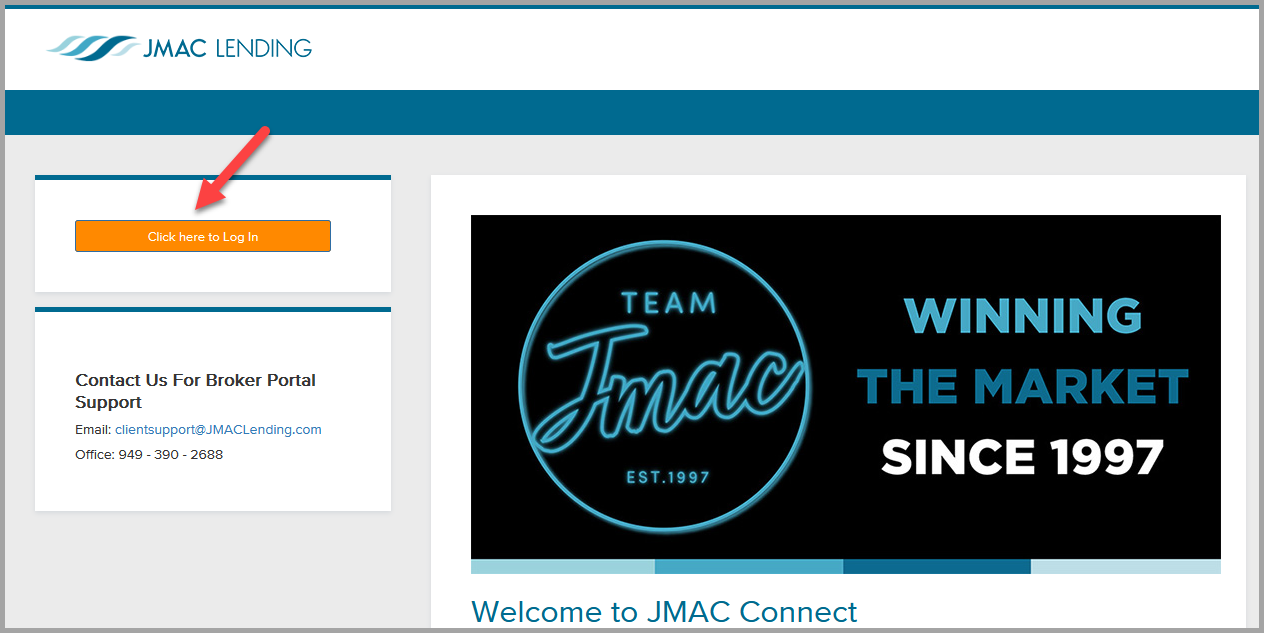
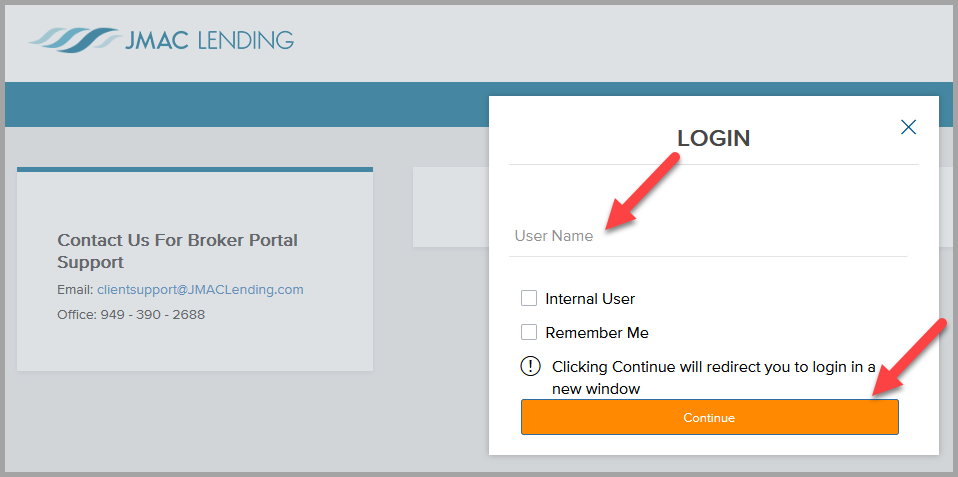
Enter your email address and click Continue.
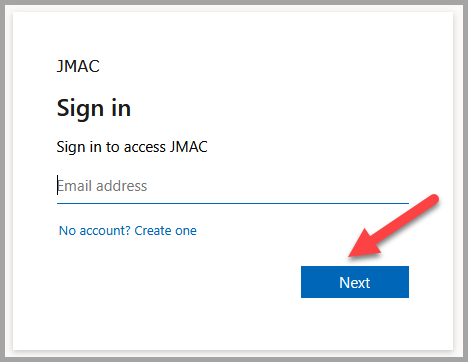
You will re-enter that same email address into Microsoft and click Next.
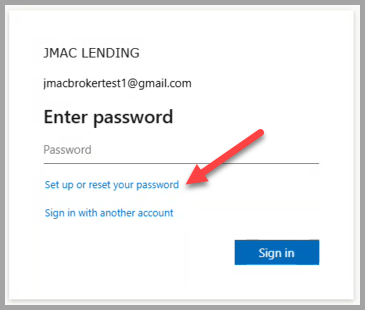
Next, choose Set up or reset your password and click Sign in.
You will be asked to verify your identity through a verification code.
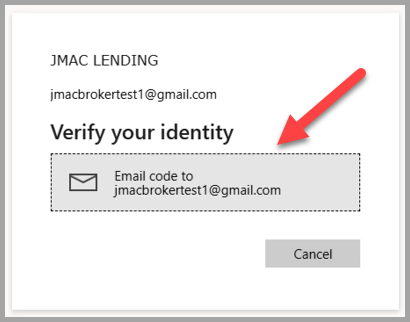
Go to your email to copy the code.
NOTE: The code comes from JMAC Lending (via Microsoft) at account-security-noreply@accountprotection.microsoft.com.
IMPORTANT: If you do not receive the email, confirm that you are using the correct email address. If it's correct, check your junk and spam folder to ensure it wasn't filtered out accidentally. If it still does not send the code, you can reach out to clientsupport@jmaclending.com for assistance.
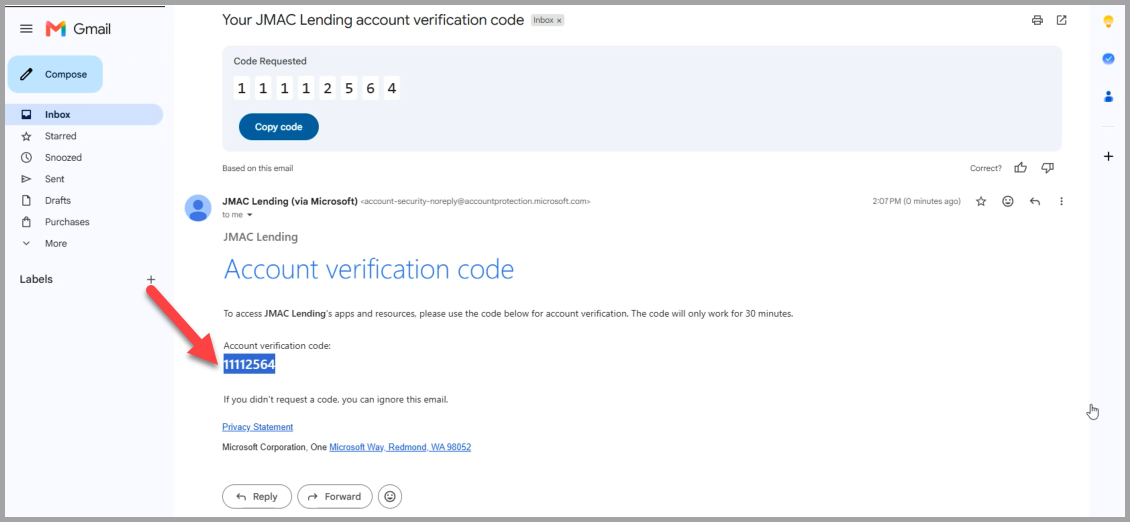
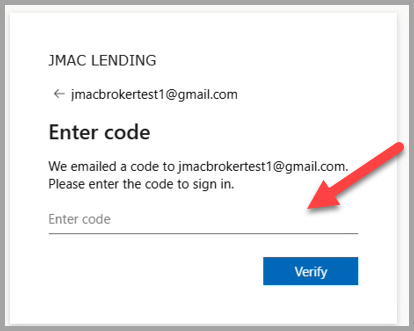
Paste your code into the browser.
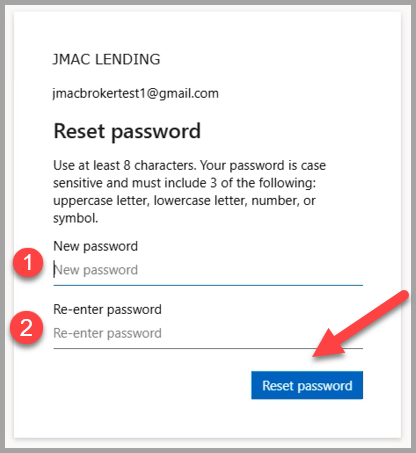
You will be prompted to create a new password and click Reset password to confirm.
IMPORTANT: Your new password must contain a minimum of 8 characters and include at least 3 of the following: a lower case letter, an upper case letter, a number, and a special character. Common or easily guessed passwords are not allowed.
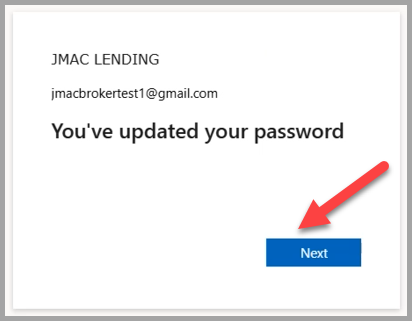
You will receive a confirmation message that SSO has been setup.
Click Next to re-enter your credentials to access JMAC Connect.
Sign into JMAC Connect with SSO
Now that you have set up your SSO account, you will authentic into your account. This will keep you signed in as long as you are using the same computer and browser.
Now, re-enter your Username.
Next, enter your new password.
Send a new code to verify your identity.
NOTE: The first time you sign in, you will receive two codes: one to set up your password and one to sign in. This is expected.
Copy from your email.
NOTE: The code comes from JMAC Lending (via Microsoft) at account-security-noreply@accountprotection.microsoft.com .
Paste into the verification.
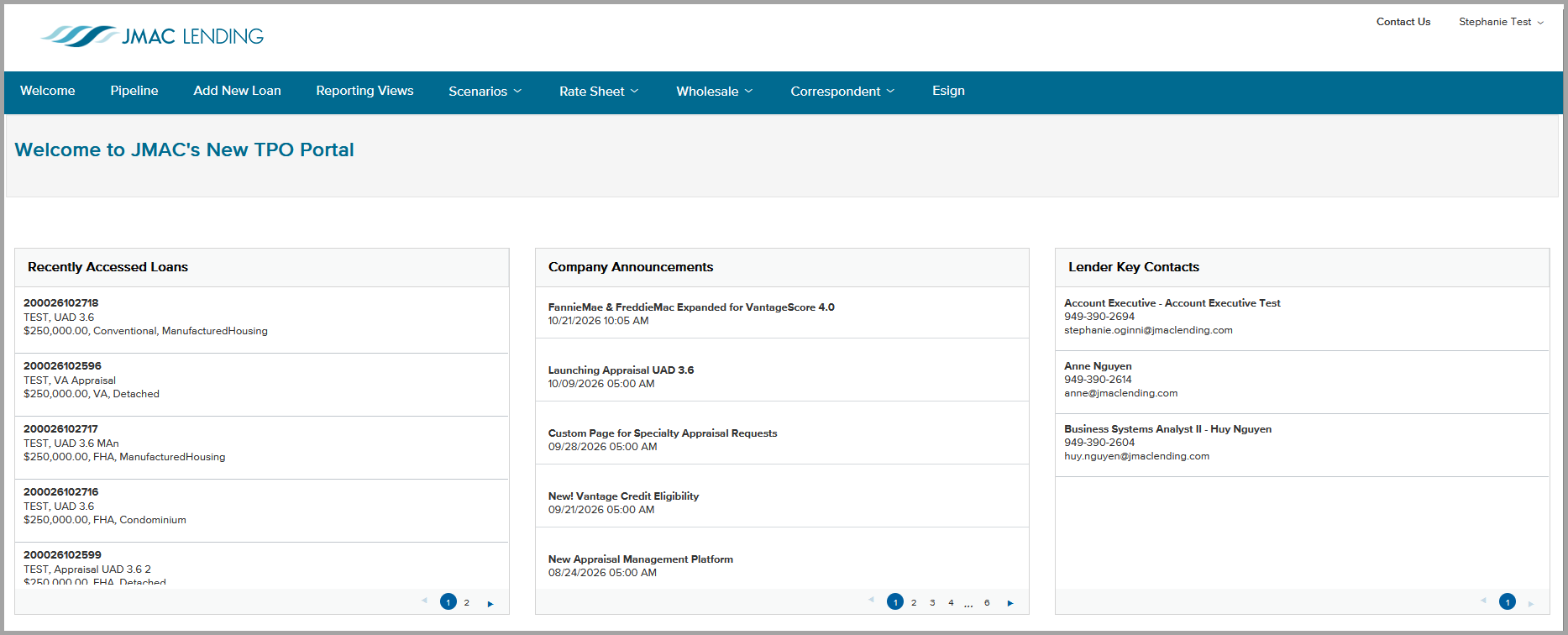
You will see your JMAC Connect Dashboard.
Frequently Asked Questions
What if I use multiple devices or browsers?
You will need to sign in once on each device and browser, and you will stay signed in the next time you access your account.
Will my existing login information change?
Your login email address will remain the same, but you will be prompted to setup a new password. If you are currently using a fake domain like @whl.com or @corr.com, you will need to email clientsupport@jmaclending.com to update your login email address to a real inbox that can receive or forward two-factor authentication emails.
What if Microsoft says it can't find my account?
Confirm you are using the same email address you use to log in to JMAC Connect today. If it still does not work, contact clientsupport@jmaclending.com instead of trying other email addresse
Can I update my login email?
Contact clientsupport@jmaclending.com with your current login email address and what email address you prefer instead.
Can my account become locked?
Yes, your account can be locked if you fail to enter your password correctly. We strongly recommend clicking Set up or reset your password instead of re-attempting to enter your password multiple times.
- You are allowed 10 attempts to enter your password correctly. If it fails, you will be locked out of the account for 1 minute.
- If it keeps happening, each lockout will last longer.
Can Client Support send me my password?
No, JMAC will no longer send any password for JMAC Lending website or for JMAC Connect through email. You can click Set up or reset your password to update your password.
Will JMAC ever ask for my verification code?
No. JMAC will never call or email you to ask for your code. If anyone asks for it, do not share it, and contact clientsupport@jmaclending.com.
Can an account be disabled?
Yes, you would see an error stating "Something went wrong and we can't sign you in right now. Please try again later." Your account could be disabled if the following is true:
- if you have not logged in or started a loan within the past 365 days
- if an email alias was not provided before the SSO transition date.
Why was I signed out of JMAC Connect?
JMAC Connect may sign you out after a period of inactivity. When you sign back in on the same computer and browser, you will not need to enter your password or a code.
Who do I contact if I have trouble logging in?
Please reach out to clientsupport@jmaclending.com and our team will assist you.
Did this guide help?
Still have a question about this guide?
Need a person?
Client Support, 8am–5pm PT, Monday–Friday.
(949) 390-2671clientsupport@jmaclending.com